Cloud kitchen software for Nepal
Cloud kitchen software with your own ordering link
Share one link on Facebook, Instagram or Viber. Customers order for pickup or delivery with a pin on the map, your kitchen hears every order, and every bill adds itself up.
- One ordering link that never changes
- Pickup or delivery, with a pin on the map
- Phone orders typed in from the dashboard
Sound familiar?
Orders arrive by Messenger, Viber and phone call, and one always gets missed.
Someone copies every order onto paper for the kitchen.
The delivery goes to the wrong house because half the address was missing.
At night, nobody can say which orders were paid.
ServeFlow fixes each of these.
Everything a delivery kitchen needs
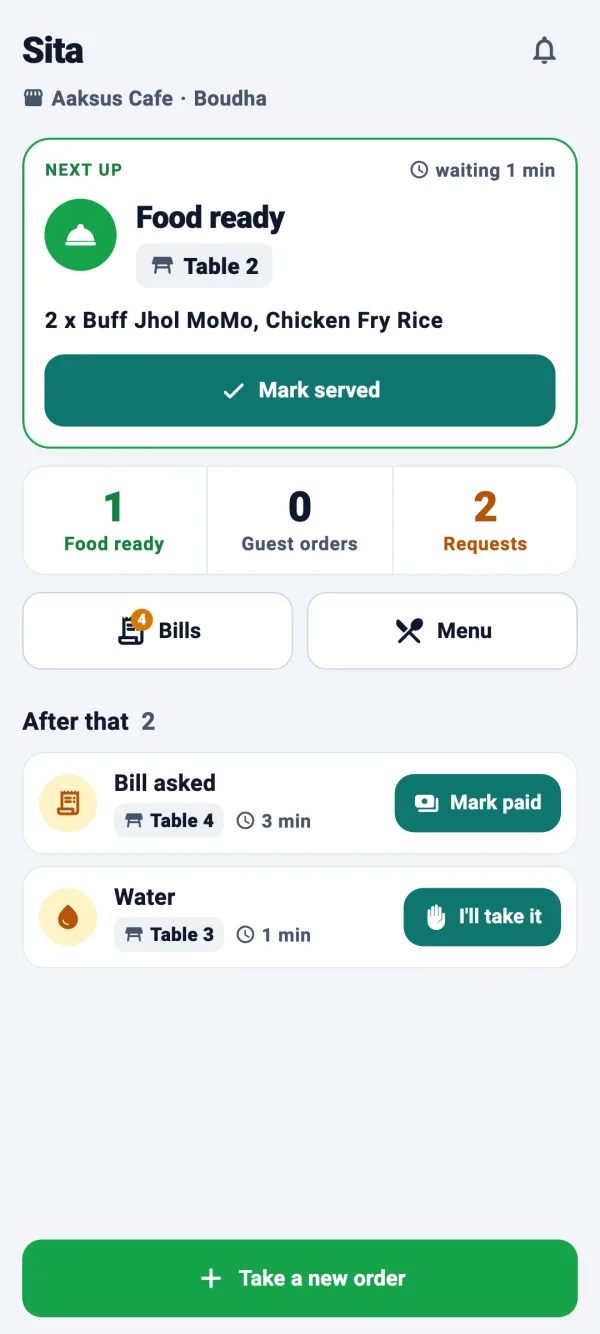
Orders from your link and from the phone reach one kitchen board and one list of bills.
- Guest menu
One ordering link
Put it in your Facebook and Instagram bio, on flyers and in Viber groups. It never changes, so saved links keep working.
- Guest menu
Pickup or delivery
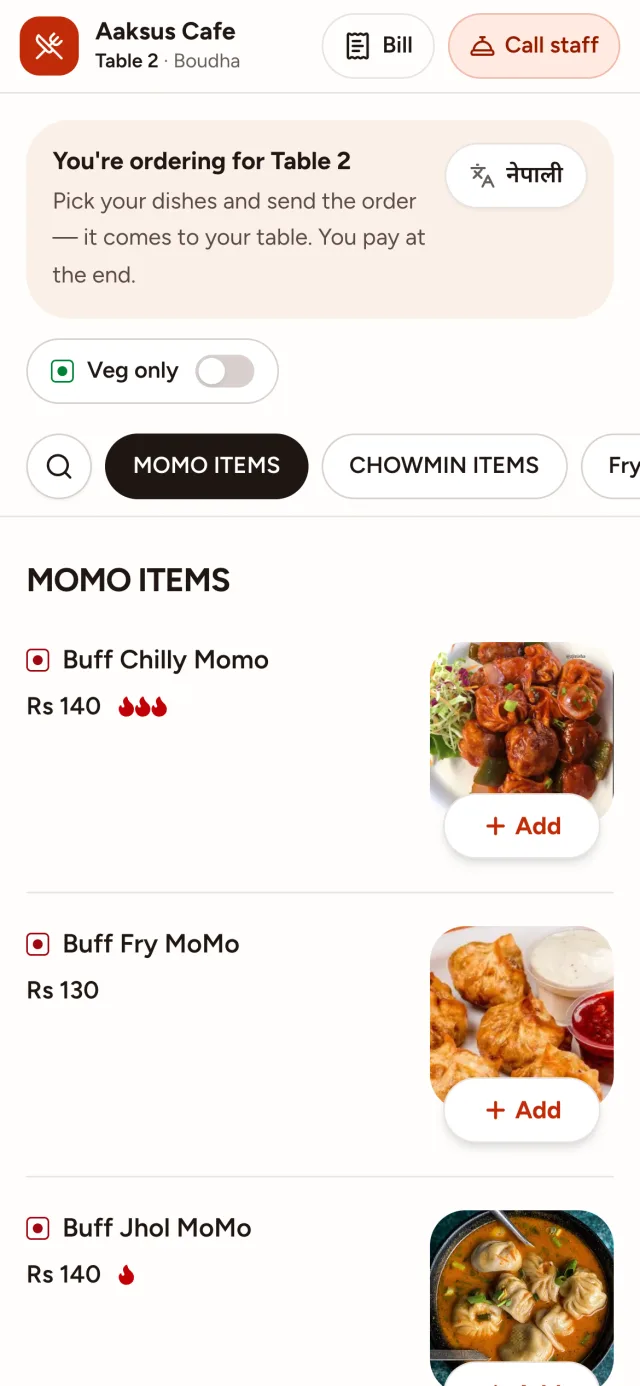
Customers give their name, phone and address, drop a pin on the map, and their details are remembered for next time.
- Kitchen app
Heard in the kitchen
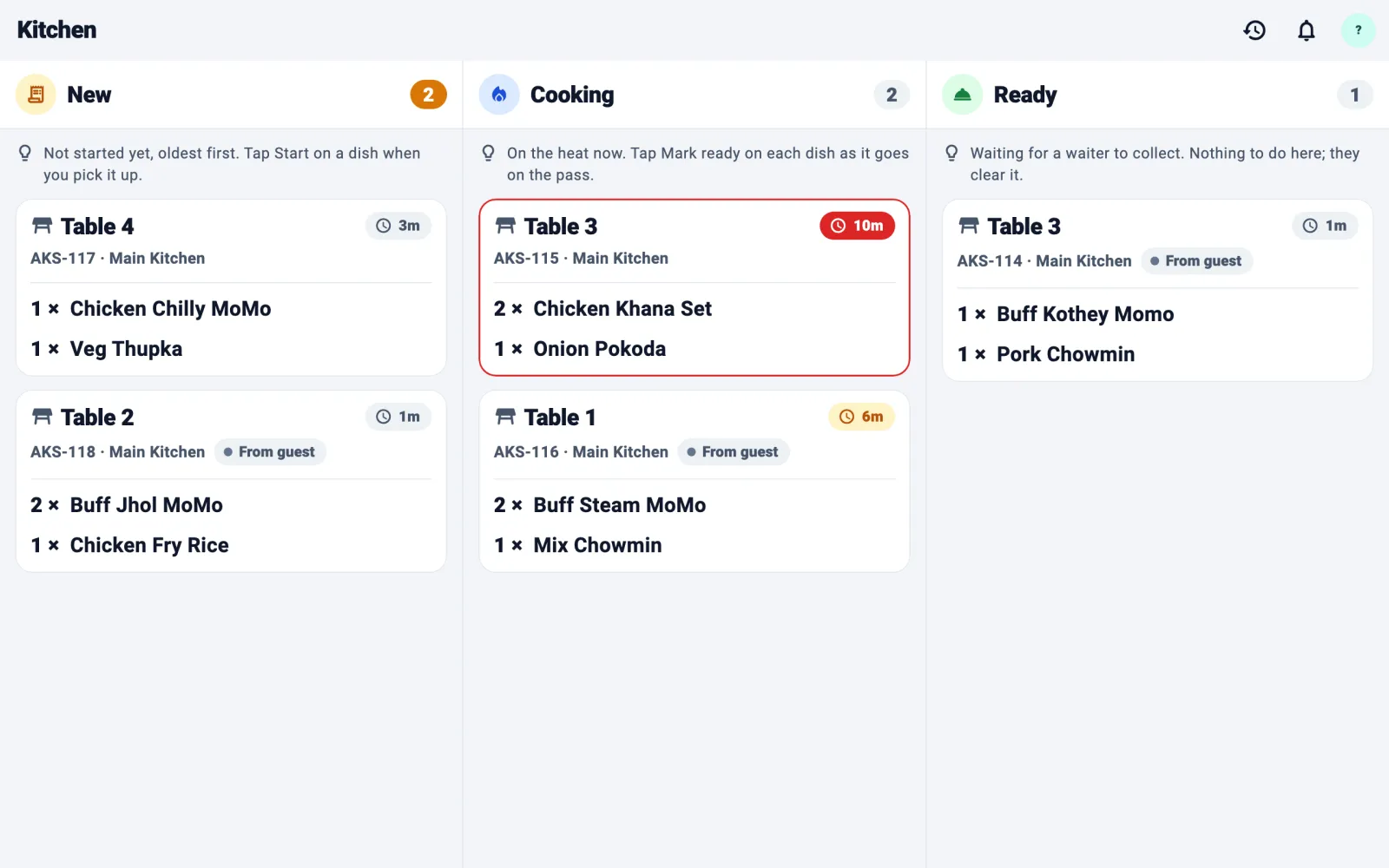
“Take away order by Sita.” Every order is read out on the kitchen board, with a timer on each ticket.
More about the KOT system - Business dashboard
Phone orders too
Type a phone order into the dashboard with the customer's name and phone. It goes to the same kitchen and the same bills.
- Business dashboard
Too busy? Pause the link
Pause it during a rush, and customers see you're not taking orders right now. Resume it, and the same link works again.
- Business dashboard
Bills and best sellers
Every order's bill, paid by cash or QR, plus your best-selling dishes and busiest hours.
One delivery order, start to finish
- 1
Ordered from Instagram
A customer taps the link in your Instagram bio, picks two chicken burgers and chooses Delivery, with a pin on the map.
- 2
The kitchen hears it
“Take away order by Ramesh” is read out on the kitchen board, and the cook taps Start.
- 3
Packed and on its way
When it's packed, the cook taps Ready. Your team opens the customer's pin in maps for directions.
- 4
Paid and recorded
The customer pays by cash or QR, and the bill is marked paid.
Questions owners ask
Do customers need an app to order?
No. The link opens your menu in their phone's browser. They give their name, phone and pickup or delivery details, which are remembered next time.
Can I run a cloud kitchen with no tables at all?
Yes. A branch can take take-away orders only: from your link, and phone orders typed into the dashboard.
Where can I share the link?
Anywhere: your Facebook page, Instagram bio, Viber and WhatsApp groups, flyers and packaging. The dashboard also prints it as a QR card.
What happens when we're too busy?
Pause the link. Customers see that you're not taking take-away orders right now, and the same link works again when you resume.
Can a restaurant use the link too?
Yes. Any branch can share a take-away link alongside its table QR codes, so dine-in and take-away orders reach the same kitchen.
How much does it cost?
It depends on how many branches and staff you have. Request a demo and we'll give you a price for your kitchen.
What you need
No special hardware and no installation visit.
Guests
Their own phone with a camera
Waiters and cashiers
An Android phone
Kitchen and bar
An Android phone or tablet
You
Any browser, on a laptop, tablet or phone
And an internet connection: Wi-Fi or mobile data. Weak signal? A tap never places the same order twice.
Up and running in four steps
- 1
We set up your business
Tell us your branches, tables and rooms on the demo call, and we create your account.
- 2
Add your menu
Dishes, prices and photos. Paste a photo straight in.
- 3
Print your QR codes
Ready-made cards for every table and room, from the dashboard.
- 4
Invite your team
Each person gets an email with a code, installs the app and joins.
ServeFlow across Nepal
We set up restaurants, cafés and hotels anywhere in Nepal over a call. See how ServeFlow fits your city.
- BhaktapurBhaktapur · Bagmati Province
- BiratnagarMorang · Koshi Province
- ButwalRupandehi · Lumbini Province
- ChitwanChitwan · Bagmati Province
- DharanSunsari · Koshi Province
- ItahariSunsari · Koshi Province
- JanakpurDhanusha · Madhesh Province
- JhapaJhapa · Koshi Province
- KathmanduKathmandu · Bagmati Province
- LalitpurLalitpur · Bagmati Province
- LumbiniRupandehi · Lumbini Province
- PokharaKaski · Gandaki Province
ServeFlow is also for
- RestaurantsQR ordering, a kitchen order screen and billing for dine-in.
- CafésA QR menu, orders heard at the counter and bills that split by phone.
- HotelsRoom service, housekeeping requests and the hotel restaurant in one system.
- Bars & pubsDrinks to the bar's own screen, and every round on the table's bill.
- Resorts & homestaysFood and room service from a QR code in every room, cottage or garden table.
Request a demo
Tell us a little about your business. We'll call you back to find a time, then walk you through every screen and answer your questions.
What happens next
- 1
We call you back
To find a time that suits you.
- 2
A free demo
Every screen, for guests, waiters, the kitchen and you.
- 3
We set you up
If you like it, we create your account and help you add your menu.